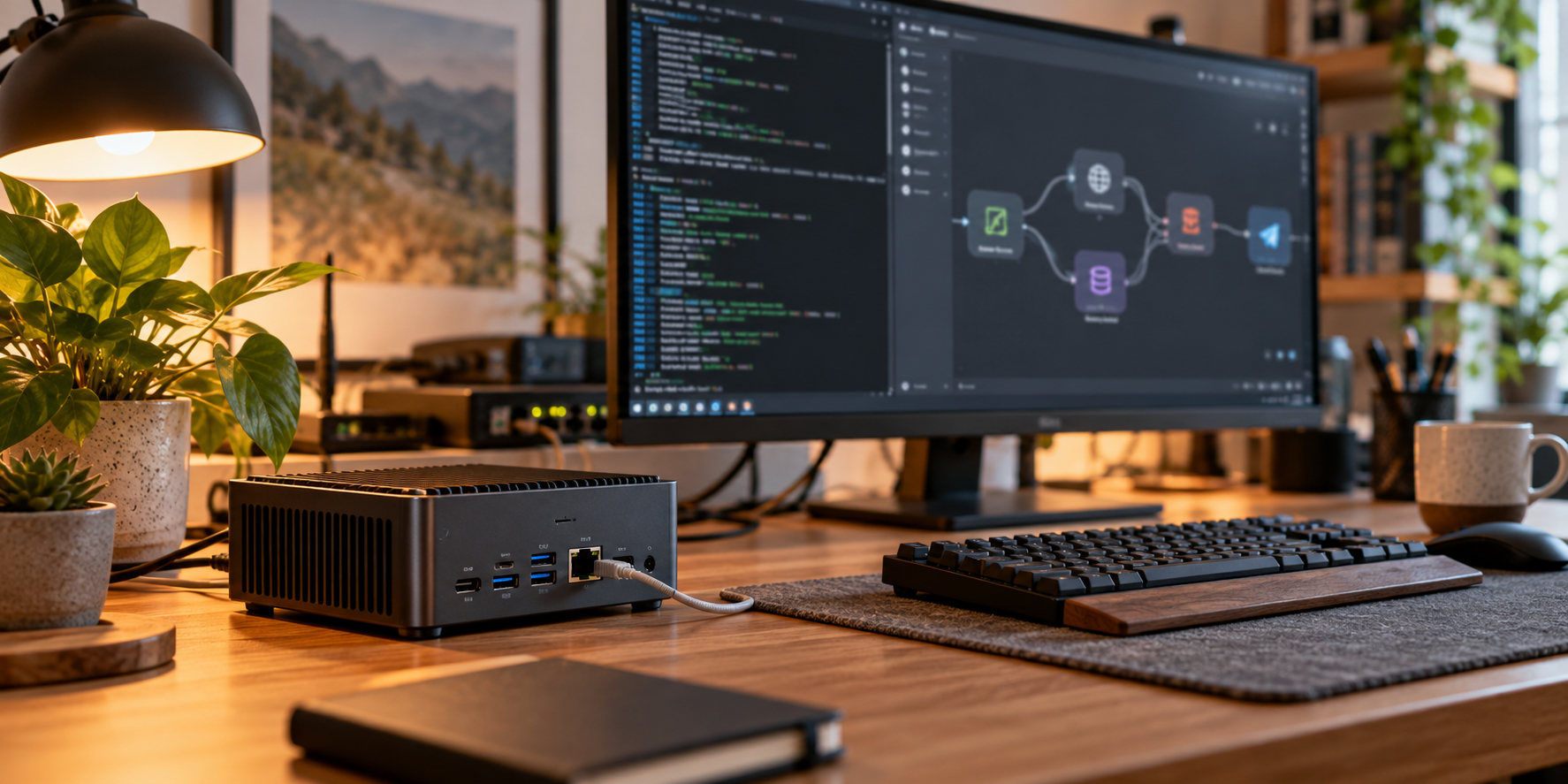
There is something satisfying about watching a workflow run on a machine you control. A webhook arrives, an API responds, and a repetitive job disappears from your day—all without leaving an automation dashboard running on your laptop.
n8n lets you connect services and build workflows visually. Pair it with Arch Linux and you get a flexible foundation for a personal automation server. Arch supplies the host; Docker keeps n8n’s application dependencies contained.
This tutorial builds a fresh, single-instance installation using PostgreSQL and Caddy. It covers ordinary workflows; n8n Assistant and its separate sandbox infrastructure are outside this setup. The official n8n Compose guide documents those additional services.
Before you begin
You will need an installed Arch Linux system, a user with sudo access, and a domain such as n8n.example.com. A small VPS or an always-on home server will work. As a practical starting point, budget two CPU cores, 4 GB of RAM, and SSD storage; actual requirements depend on your workflows.
Point your domain’s DNS A record at the server’s public IPv4 address. Add an AAAA record only if IPv6 reaches the same server. Allow inbound TCP ports 80 and 443 through your firewall and, at home, forward them through your router. Keep SSH restricted appropriately. A connection behind carrier-grade NAT needs a different ingress arrangement, such as a VPS or a suitable tunnel.
Caddy uses the hostname to obtain and renew HTTPS certificates. Its reverse proxy documentation explains the DNS and port requirements.
1. Prepare Arch Linux
Update the system and install the packages:
sudo pacman -Syu docker docker-compose openssl
sudo systemctl enable --now docker.service
sudo docker compose version
Reboot first if your update requires it, particularly after a kernel upgrade. Arch is a rolling release, so plan full system updates and maintenance windows. See the ArchWiki Docker guide for host-specific details.
The commands here use sudo for Docker administration. Create a private project directory:
mkdir -p ~/n8n
chmod 700 ~/n8n
cd ~/n8n
2. Set your configuration
Create a file named .env in that directory:
N8N_DOMAIN=n8n.example.com
N8N_VERSION=REPLACE_WITH_STABLE_VERSION
GENERIC_TIMEZONE=Etc/UTC
POSTGRES_PASSWORD=REPLACE_WITH_RANDOM_SECRET
N8N_ENCRYPTION_KEY=REPLACE_WITH_ANOTHER_RANDOM_SECRET
Replace the domain and choose your timezone, such as America/Denver. Find the current stable version in the official n8n releases, then replace the version placeholder with its numeric image tag. Pinning a version makes upgrades deliberate.
Run this command twice to generate two different secrets:
openssl rand -hex 32Use one result for the database password and the other for the encryption key. Then protect the file:
chmod 600 .envKeep the encryption key in your password manager as well. Restoring the database without its matching key will leave saved credentials unreadable. Keep .env out of Git.
3. Define the services
Create compose.yaml:
name: n8n

services:
  postgres:
    image: postgres:18
    restart: unless-stopped
    environment:
      POSTGRES_USER: n8n
      POSTGRES_PASSWORD: ${POSTGRES_PASSWORD:?Set POSTGRES_PASSWORD}
      POSTGRES_DB: n8n
      PGDATA: /var/lib/postgresql/data
    volumes:
      - postgres_data:/var/lib/postgresql/data
    healthcheck:
      test: ["CMD-SHELL", "pg_isready -U n8n -d n8n"]
      interval: 5s
      timeout: 5s
      retries: 20

  n8n:
    image: docker.n8n.io/n8nio/n8n:${N8N_VERSION:?Set N8N_VERSION}
    restart: unless-stopped
    depends_on:
      postgres:
        condition: service_healthy
    environment:
      DB_TYPE: postgresdb
      DB_POSTGRESDB_HOST: postgres
      DB_POSTGRESDB_PORT: "5432"
      DB_POSTGRESDB_DATABASE: n8n
      DB_POSTGRESDB_USER: n8n
      DB_POSTGRESDB_PASSWORD: ${POSTGRES_PASSWORD}
      N8N_ENCRYPTION_KEY: ${N8N_ENCRYPTION_KEY:?Set N8N_ENCRYPTION_KEY}
      N8N_HOST: ${N8N_DOMAIN}
      N8N_PORT: "5678"
      N8N_PROTOCOL: https
      N8N_EDITOR_BASE_URL: https://${N8N_DOMAIN}/
      N8N_WEBHOOK_URL: https://${N8N_DOMAIN}/
      N8N_PROXY_HOPS: "1"
      GENERIC_TIMEZONE: ${GENERIC_TIMEZONE}
      TZ: ${GENERIC_TIMEZONE}
      N8N_ENFORCE_SETTINGS_FILE_PERMISSIONS: "true"
    volumes:
      - n8n_data:/home/node/.n8n

  caddy:
    image: caddy:2
    restart: unless-stopped
    depends_on:
      - n8n
    ports:
      - "80:80"
      - "443:443"
    environment:
      N8N_DOMAIN: ${N8N_DOMAIN:?Set N8N_DOMAIN}
    volumes:
      - ./Caddyfile:/etc/caddy/Caddyfile:ro
      - caddy_data:/data
      - caddy_config:/config

volumes:
  postgres_data:
  n8n_data:
  caddy_data:
  caddy_config:
Only Caddy publishes ports on the host. It forwards requests to n8n over the Compose network; PostgreSQL stays on that network too.
The public webhook URL and proxy hop count tell n8n how requests reach it. This example has one proxy: Caddy. Current n8n documentation uses N8N_WEBHOOK_URL; the older WEBHOOK_URL variable is deprecated. See n8n’s reverse proxy configuration.
Create Caddyfile alongside compose.yaml:
{$N8N_DOMAIN} {
    reverse_proxy n8n:5678
}
4. Start your automation server
Validate the configuration without printing resolved secrets, then start the services:
sudo docker compose config --quiet
sudo docker compose up -d
sudo docker compose ps
sudo docker compose logs --tail=100 n8n caddy
Open https://n8n.example.com, replacing it with your domain. Complete the owner-account setup immediately and use a strong, unique password. Restrict public access to your own IP during initial setup if possible.
For a first workflow, connect a Manual Trigger to an Edit Fields node, add a test value, and execute it. Then try a Webhook trigger. Use its test URL while listening in the editor; enable or publish the workflow, as your version requires, before using its production URL.
If HTTPS fails, check DNS, router forwarding, firewall rules, and Caddy’s logs. If webhooks show the wrong hostname, check .env and recreate the n8n container with sudo docker compose up -d n8n.
5. Back up before you depend on it
A running container is replaceable. Your workflows, credentials, and encryption key are the valuable parts.
Back up .env, compose.yaml, Caddyfile, the PostgreSQL database, and the n8n_data volume. For a simple database dump, briefly stop n8n so it cannot write while you capture related data:
mkdir -p backups
chmod 700 backups
sudo docker compose stop n8n
sudo docker compose exec -T postgres pg_dump -U n8n -d n8n \
  > "backups/n8n-$(date +%F-%H%M%S).sql"
sudo docker compose start n8n
This command backs up the database only. Archive n8n_data during the same stopped period when making a complete backup, especially if workflows store files there. Encrypt backups, copy them off the server, and test restoration on a separate instance.
Never use docker compose down -v as routine maintenance: it removes the project’s named volumes.
Before upgrading, take a complete backup and read the release notes. Change N8N_VERSION in .env, then run:
sudo docker compose pull n8n
sudo docker compose up -d n8n
Check the logs and run a representative workflow afterward. Database migrations can make a simple image downgrade unsafe; a rollback may require restoring the matching backup. PostgreSQL major upgrades also need an explicit migration plan.
Make it useful
Start with one task you already repeat: fetch a report, format its data, or send yourself a scheduled reminder. Add error handling and failure notifications before making that workflow part of your routine.
The reward is a server that quietly handles useful work. Arch gives you control over the host, Compose makes the deployment understandable, and n8n gives that small machine a growing list of jobs.